Friday, 10 April 2020

Particle Tutor

Particle Tutor is an iOS application that can be used to learn the elements in the periodic table and the particles in the standard model of particle physics.  In addition it can be used as a reference to look up information about elements or about sub-atomic particles.


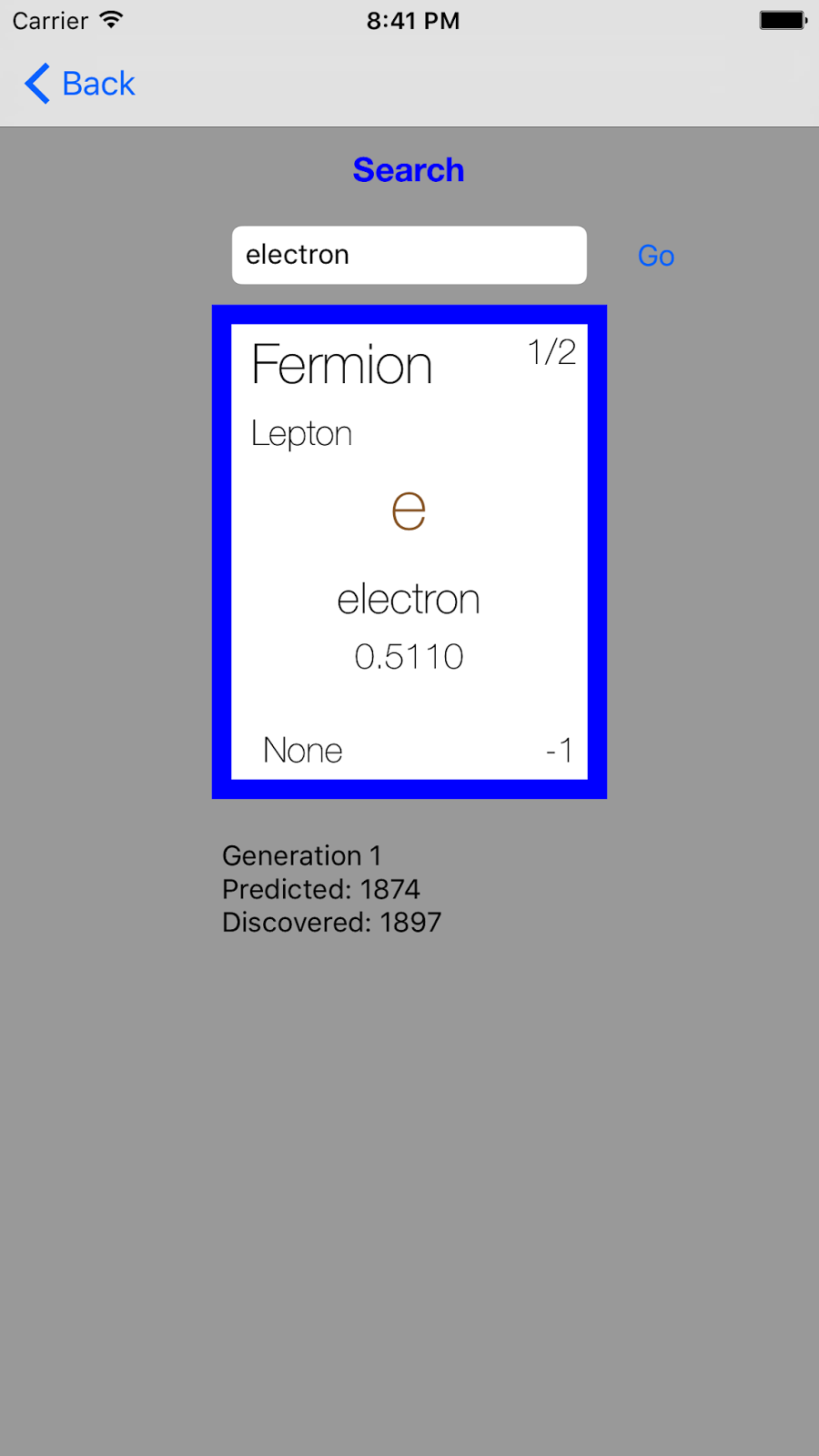
The Search screen allows you to bring up any element in the periodic table or particle in the standard model to view detailed information.


Or you can try the quiz to build up your knowledge.


There are several different types of quizzes you can try.


In addition, there are many customizations that you can apply:

  • change the quiz type 
  • specify the number of questions in the quiz
  • show or hide a time clock
  • show the correct answer after an incorrect response
  • have the quiz generate elements randomly or sequentially
  • limit the range of atomic numbers to be quizzed on
  • change the color theme


After you complete the quiz, the top 10 scores are saved for each quiz type.


Monday, 23 March 2020

Privacy Policy

Quantum Academy iOS Apps Privacy Policy

No personal information is collected by this application.

Google adMobs is used to display ads in the application which can be disabled with an in-app purchase.

Custom Time Splits

Custom Time Splits is a custom stop watch that can track your split or lap times.  Your best times are saved so you can track your progress each time you use it.  The splits or laps are collected into groups.


Each group can be one of two types: Manual or Automatic.  In Manual mode, you manually move through the splits or laps.  In Automatic mode, the timer advances to the next split when the end of the split (defined in seconds) has been reached.  After the end of each split in Automatic mode, a beep will sound.


There are other options that a Group may have.  If the Auto Create Splits option is set (available only in Manual mode), then once the end of the list of splits is reached if you tap the Split button again a new split will be automatically created.

The Number of Repeats (available only in Automatic mode) specifies how many times you would like to repeat cycling through the list of splits.

The Show Milliseconds option determines whether the timer shows milliseconds or just seconds.

The Clear button, clears all history for that group.


The above image shows four splits for a circuit race.  The splits are ordered by id number.  To change the order of the splits, change the id numbers.


The image above shows an exercise routine (defined as a group in Automatic mode).   There are two splits.  The Reps split lasts 120 seconds (2 minutes).  The rest split lasts 30 seconds.  These splits can be repeated by setting the Number of Repeats in the Group View.


The Split screen is where you can edit details about a split.


The Timer screen is where you Start, Stop, Reset, and Split the stop watch.  Your best total time is tracked and the difference from your current time to your best time is shown.


Saturday, 28 July 2018

Custom Split tracks your split or lap times and saves your history so that you can try to improve on your times for future timings.  The splits can be laps or landmarks while jogging or milestones when playing a game.

On the main screen, your current split times are displayed, along with the difference or delta from your current time and the best time that you have saved.


When you press the Start button, the timing will begin as shown in the image below:


Every time you press the Split button a new split will be created if one doesn't already exist or it will start timing the next split in the list.

The Save button, saves your current times.  If any of your current times are better than your best times, then the best times will be updated.

The Stop button will stop the timer.  Pressing the Start button will resume the timer.  If you press the Reset button, your current times are reset.

The Clear button allows you to edit your best times or to clear out your best times.


The Clear button on the Edit Times screen will reset all your best time splits to 0.

The Edit button allows to you update, delete or add new splits.


At the bottom of the main screen a running total of your current time is displayed as well as a delta from the best total time that you saved.

Tuesday, 4 April 2017

Particle Trainer

Particle Trainer is a new iOS application that can be used to test your knowledge of the periodic table and the standard model of particle physics.  In addition it can be used as a reference to look up information about elements or about sub-atomic particles.


The Search screen allows you to bring up any element in the periodic table or particle in the standard model to view detailed information.


Or you can try the quiz to build up your knowledge.


There are several different quiz types you can try.  Also, the quiz can be customized.  For instance, you can limit the range of the elements you would like to be quizzed on.


Tuesday, 7 March 2017

Physics and Math Assistant

Physics and Math Assistant is an iOS application which assists in solving physics and math problems.  The application consists of equations and formulas useful in a number of different areas in math and physics.  The categories include Classical Mechanics, Special Relativity, Quantum Mechanics, and general Math.  Categories can be enables/disabled in the Options screen.  Also, the precision is customizable.  When entering values always remember to be consistent in units between variables.  If the equation uses any constants, be sure to use SI units.

When you launch the application, you get a list of equations/formulas by category:


Once you select something, the equation page is presented where you can enter values for all required variables.   Once all required variables are entered, tap Solve to solve the equation or Clear to clear the inputs:


On the Options page, you can enable/disable categories and also specify the precision you would like to see in the results: